
Using Crest
How Crest tracks invoices and sends reminders
Updated 12 September 2026 · Crest Invoice Team
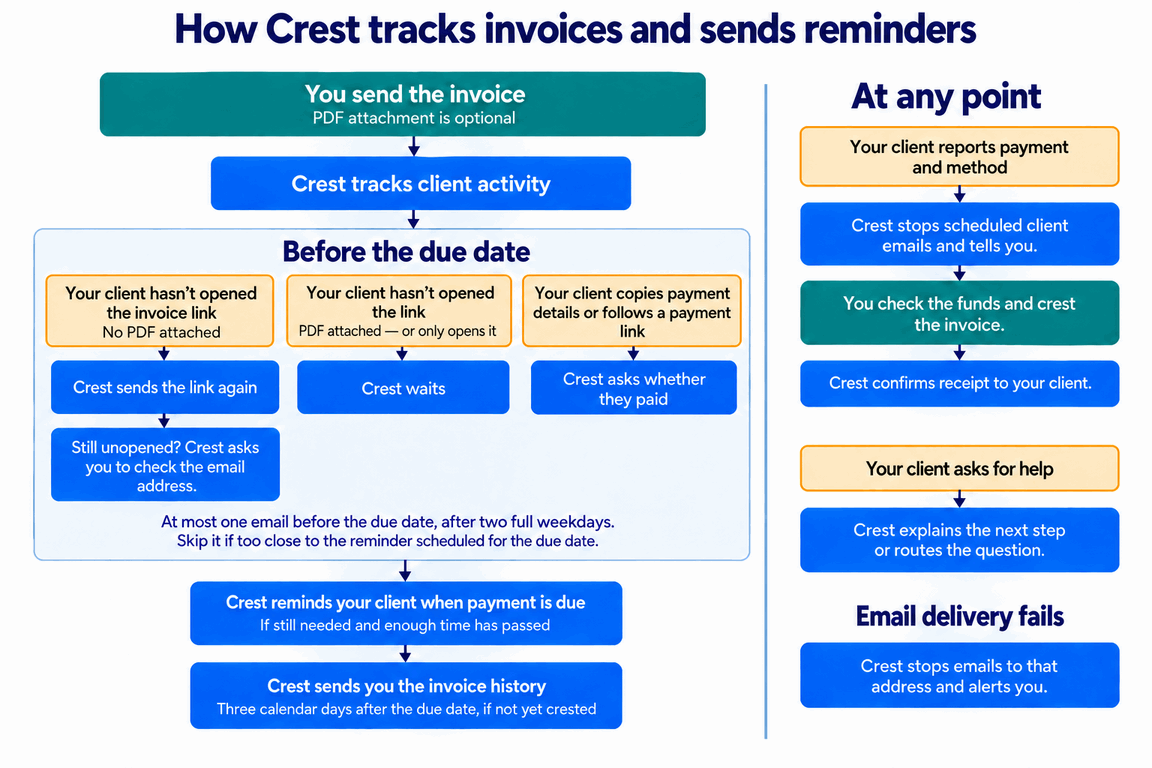
Send an invoice through Crest and Crest starts tracking it. Crest looks for useful signals: whether your client opened the invoice link, copied payment details, followed a payment link, reported payment or asked for help. Those signals determine whether Crest waits, sends a reminder or alerts you.
Before you send
Enter your invoice details, add the work you’re billing for and choose how your client can pay. Before sending, check the amount, payment details and your client’s email address. Crest pre-fills a default due date of 14 calendar days after the invoice date. If you agreed a different payment date with your client, enter that date before sending.
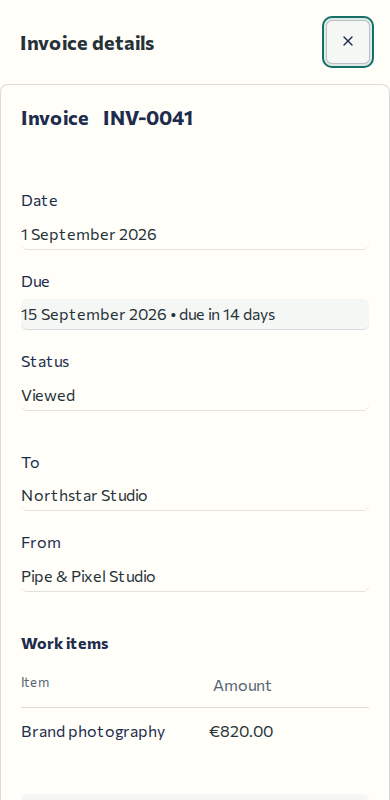
Crest highlights the due date when it falls on Saturday or Sunday. You can still use that date, but weekends are usually non-working and non-banking days, so check that it matches what you agreed with your client.
Thirty days is a common payment term, but a month can be a long wait when you freelance. Crest defaults to two weeks: time for your client to arrange payment, with less waiting for you. You can change the date before sending. Read about payment terms, due dates and the rules in the UK, US and EEA.
Crest starts tracking when you send
Choose Send invoice. Crest emails your client the invoice link and starts tracking their activity. You choose whether to attach a PDF to the email.
What Crest tracks before the due date
You can see invoice views, copied bank details and payment-link visits in My Invoices. They help Crest decide whether to email your client or give them more time.
The invoice link hasn’t been opened
If you attached a PDF, your client may have read it or sent it to their accountant. Crest waits because it cannot see whether someone has read the email or the PDF.
Without a PDF attachment, your client needs the link to see the invoice. If they haven’t opened it, Crest emails the link again. If the link remains unopened after that, Crest alerts you: the email address may be incorrect. It explains that neither message led to an invoice view and asks you to check the address. You can then confirm it with your client through another channel.
Your client has opened the invoice
Crest shows the invoice view in My Invoices. It does not email you about the view or send your client another email for opening it.
Your client has copied payment details or followed a payment link
Your client may follow a payment link, pay in their banking app and never return to Crest. They may have paid without reporting it.
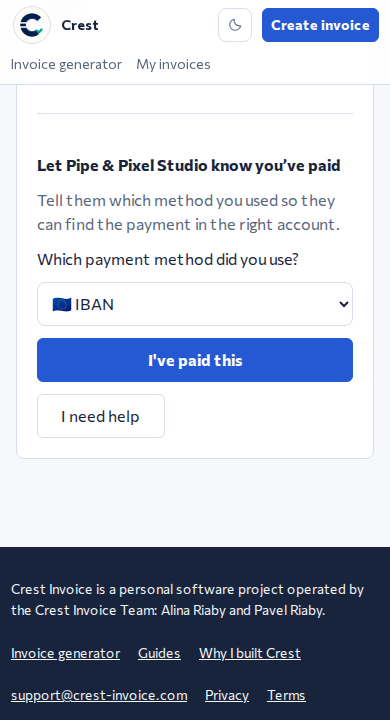
Crest gives them time, then emails to ask whether they have paid and which method they used. Their answer tells you which account to check and stops further payment requests. This works with the payment method you and your client already use, including a bank transfer. The email thanks them for reporting payment. How to confirm receipt
When does Crest email your client again?
Crest waits two full weekdays after sending the invoice before checking that your client received it. For the payment question, it waits two full weekdays after the first time your client copies payment details or follows a payment link. The day of that action does not count.
Send on Friday evening, and the earliest next email is Wednesday at 9am. Your client has Monday and Tuesday to deal with the invoice.
Crest sends at most one of these emails per invoice before the due date. If it has already asked whether the invoice arrived, it does not also ask whether your client paid. Opening the link repeatedly or copying details again does not generate more emails.
If fewer than two full weekdays would remain before the email scheduled for the due date, Crest skips the earlier email.
How Crest sends reminders
If your client has not reported a payment, Crest emails your client on the due date. It includes the invoice link and asks them to report payment if they have already paid, or open Help if something is holding them up. They can forward it to whoever is arranging payment.
Crest stops scheduled client emails when your client reports payment or you crest the invoice. With a short deadline, your client may receive only the original invoice email.
Weekends and short payment deadlines
Crest schedules these emails for 9am, Monday to Friday, using the timezone recorded for the invoice. Crest does not adjust this schedule for public holidays or local working weeks.
If payment is due on a weekend, Crest sends the email on Monday. It still shows the original due date; the invoice’s due date does not change.
Crest allows two full weekdays after the invoice email before sending another scheduled email. If you send on Friday with payment due Monday, Crest skips both the earlier question and Monday’s email. Your client still sees Monday as the due date in the original email and invoice.
If you send an invoice that is already overdue, the first email shows that. Crest still allows two full weekdays before sending another scheduled email, including an update to you.
When your client needs help
Your client can open Help on the invoice and choose what they need:
- Payment instructions: Crest explains how to use the payment methods on the invoice.
- A copy for their accountant: Crest provides the invoice link and a PDF to download.
- A correction, another way to pay or more time: your client sends you a question with the details.
- A problem with the invoice page: Crest provides troubleshooting and a way to contact Crest support.
Questions about the invoice or payment arrangements go to you with your client’s explanation. Crest support handles technical problems with the page.
When your client reports payment
Crest starts from trust. You and your client have a working relationship; a missed invoice or an unreported payment is often an admin problem. Crest asks your client for the missing information and tells you when there is something to check.
When your client reports payment, Crest stops scheduled client emails and notifies you. The notification and the invoice card in My Invoices show their reported payment method and the destination account. You do not need to open the invoice details to see the account.
A card processor controls the checkout and can emit a successful-payment event. A bank transfer works differently: your client pushes money from their bank to the account details on the invoice. Because Crest does not receive the funds, there is no universal event that links that incoming credit to this invoice.
Some providers can automate bank-transfer matching by entering the funds flow themselves. Stripe, for example, assigns a virtual bank account and reconciles transfers it receives; payments received outside a provider can still require manual application to an invoice. Crest instead supports the ordinary bank account or payment app you already use: your client reports the method, then you confirm the money arrived.
Once you see the money in your account, choose Crest invoice. You have now crested the invoice and confirmed that you received the payment. Crest does not email your client about this owner action. You can crest an invoice whenever the funds arrive, even if your client hasn’t reported payment.
If you cannot find the payment, choose Not received yet and allow for that payment method’s processing time. If it still hasn’t arrived when expected, contact your client and ask them to check the transfer status and destination details with their bank or payment app. Crest keeps the invoice awaiting your confirmation and does not resume payment requests: your client has told you they paid, so another request to pay would not resolve the missing transfer.
If your client disputes the invoice or refuses to pay, you need to address that with them directly. Crest helps with payment admin; it cannot recover a disputed debt. The invoice history and next steps below help you take over.
What if the reported payment method is wrong?
Your client can report a different method from the one they clicked, more than one method, or say they are unsure. Check the accounts that could have received the payment before confirming receipt.
When Crest hands the invoice back to you
Three calendar days after the due date, Crest sends you the invoice history: client activity, emails sent, payment reports and any unresolved questions. If that day falls on a weekend, the update moves to the next weekday at 9am.
Use the invoice history when contacting your client. If your client reported payment but the funds are missing, ask them to check the transfer. If they asked a question, resolve it together. If they have neither paid nor replied, check your accounts first, then contact them to agree what happens next.
Crest sends this update to you and sends no further scheduled emails to your client. If you crest the invoice before the update is due, there is no need for the update.
When the problem goes beyond payment admin
Crest helps with the admin of getting paid in a good working relationship. It is not a debt-collection service: it does not keep escalating demands, involve collection agencies or resolve disputes.
If a client deliberately refuses to pay, automated emails cannot repair that relationship or resolve fraud. If this happens regularly, consider agreeing prepayment or deposits for future work, and seek appropriate advice or a specialist debt-recovery service for existing debts.
What if the invoice email cannot be delivered?
If the email service reports a delivery failure, Crest stops emails to that address and asks you to check the address. If you sent no PDF and your client still hasn’t opened the link after Crest sends it again, Crest asks you to check the address as described above. It flags a possible problem; it does not claim the email failed to arrive.
What if I haven’t set a due date?
Crest can still send the single email based on your client’s activity. It needs a due date to schedule the payment-due email and the later history update.